Workflow: Build & Export
Use the Build menu when the scene, assets, UI, and scripts are ready for PS1 packaging.
Build Commands
The Build menu contains the main actions below. The toolbar's Build and Run buttons are shortcuts to the first two commands; both use Release.
| Command | What it does |
|---|---|
| Build Disc Image (.bin + .cue) | Validate, prepare content, and generate the disc image. Does not open an emulator. |
| Build & Run in DuckStation | Generate the same disc image, then open its .cue in DuckStation. Requires a configured DuckStation path. |
| Build Settings... | Choose Scenes In Build and the startup scene. |
| Validate Project | Check the project and show results in Problems without generating a disc. |
| Open Disc Image Folder | Open Build/ps1/package/, where the generated files are saved. |
Less frequent operations are under Build > Tools & Diagnostics:
| Command | When to use it |
|---|---|
| Tool Paths... | Configure packaging tools and DuckStation, and check toolchain readiness. |
| Show PS1 Budget | Review the current scene's estimated hardware usage. |
| Show VRAM Inspector | Inspect framebuffer, texture-page, and CLUT placement. |
| Export PS1 Budget Report | Write the current-scene report to Build/ps1/logs/ps1_budget_current_scene.json. |
| Open Build Report | Open the latest Build/ps1/logs/ps1_build_performance_report.json; build a disc first. |
| Build with Readiness Checks | Build in Release and require PS1 Ready. Budget warnings can fail this stricter check; it does not replace gameplay testing. |
| Repackage Disc (Reuse Runtime) | Prepare content and regenerate the disc using an available Release runtime. Use a full build after changing the engine or build configuration. |
For a CD-R, keep the generated .bin and .cue together and select the .cue in your disc-burning software's image-writing mode. The BIN contains the disc data; the CUE describes its tracks and references the BIN. This is the same pair used by DuckStation. Build the image with Build Disc Image (.bin + .cue) when you only need the files; no emulator is required.
Before You Build
Verify these tool paths:
- the installed Polygon PS1 runtime bundle
- mkpsxiso
- PSn00bSDK, CMake, and Ninja only when compiling a private source runtime
- DuckStation (optional)
The example project keeps tool paths blank on purpose. Each developer should set local paths from Build > Tools & Diagnostics > Tool Paths... or the first-build guidance flow.
For emulator BIOS setup and the mandatory four-second startup logo, see
BIOS, Disc Boot Data, and Startup Splash.
Exports contain no Sony boot data. Keep the generated LICENSES folder with
your game; its notices are also included inside each disc image. Read
Publishing and Licenses before sharing a build.
What You See in the Editor
Project Browser > Build Output
The editor exposes the packaged PS1 output folder so the user can directly inspect:
.bin.cue.iso- packaging notes
The internal disc_root is still generated for the pipeline, but it is not the primary user-facing build output.
Console
Build and packaging logs appear in the Console. Validation errors should be resolved before relying on runtime tests.
Build Completion and History
After a build, the completion dialog shows the result, duration, disc path, and generated file sizes. Open Disc Image Folder opens the output folder. Repackage & Run prepares the disc again using the last build options and an available runtime, then opens DuckStation. Copy Summary copies a compact summary for a bug report.
The same result is stored as machine-readable JSON:
| File | Purpose |
|---|---|
Build/ps1/logs/build_summary.json | Latest build result, output sizes, failure step, message, and budget-report path |
Library/build_history.json | Last 20 build summaries for local diagnosis |
Build history is generated local state. Do not use it as the release artifact; archive the package and authoritative reports from the successful build.
PS1 Budget
The editor panel shows an authoring estimate. The build pipeline writes the
authoritative post-bake runtime reports under Build/ps1/logs/:
ps1_budget_current_scene.json,ps1_runtime_budget_<scene>_<hash>.json,ps1_build_performance_report.json.
Use Build with Readiness Checks before publishing a template or sample. A
normal Release build may succeed with warnings, but production acceptance
requires the build-level readiness field to be PS1 Ready.
These reports include:
- current scene GameObject and UI counts,
- unique meshes, materials, textures, audio clips, and script sources,
- post-bake mesh renderers, baked mesh chunks, sectorized renderers, and triangles,
- mesh RAM, mesh file bytes, texture VRAM, SPU audio, Lua heap, packet estimate, and
.BSNread size, - manifest usage, runtime memory margin, scene-content bytes, and loader transient bytes,
- Lua
Update()Behaviour count, Audio Source count, and Transform Animator count against the 32-component runtime pool, - texture page and CLUT placement,
- warnings and hard compatibility issues found by the budget analyzer.
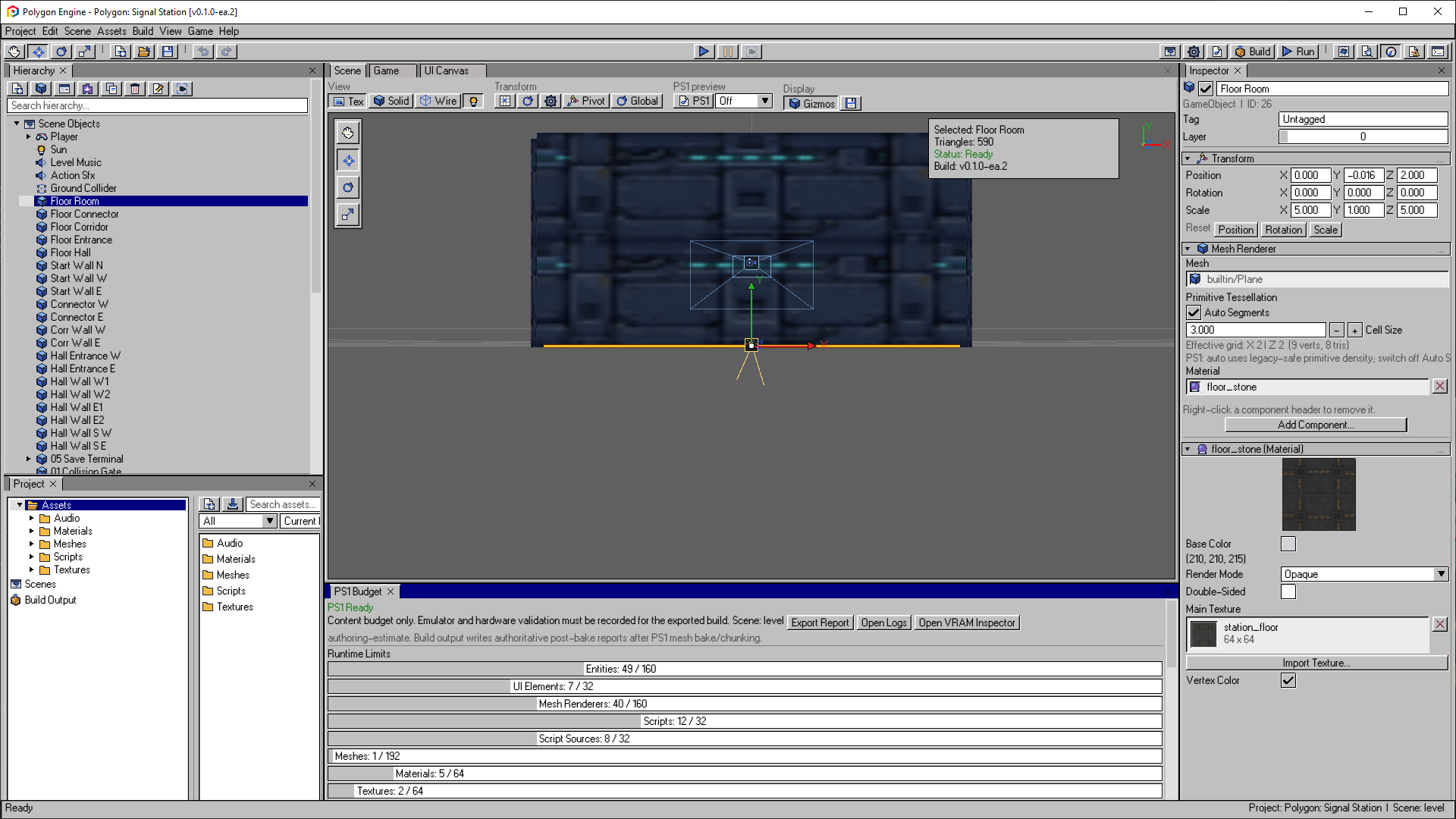
Use the budget panel to identify capacity problems before export. Export Report, Open Logs and Open VRAM Inspector provide the next level of detail.
Open the image to view it at full size.Practical PS1 Export Guidance
- Use Validate Project and Show PS1 Budget before building.
- Use Build Disc Image (.bin + .cue) while iterating on content.
- Use Build & Run in DuckStation when testing in DuckStation.
- Confirm the NTSC/PAL target in Project Settings before a full Release build.
- Use Repackage Disc (Reuse Runtime) with an available runtime; use a full Release build after changing the engine or build configuration.
- Burn the
.cue, not the.iso, for real PS1 disc creation.
Release builds re-check imported textures and resident audio before staging,
then encode enabled streaming-music sources to CD-XA. If a source file or
import setting changed, the asset is reimported or the build stops with an
actionable error. The .BSN writer also validates runtime string lengths
before writing so names, prompts, UI text, Input Action names, Transform Animator
states, Spawn Point IDs, and Lua callback names are never silently truncated.
Current builds write bounded .BSN scene data with tagged rendering,
loading/UI, world, navigation, animation, and timeline chunks. Rebuild projects
after an engine update so the current writer and validation rules inspect every
feature before packaging.
Why Export Can Differ From Editor Preview
PS1 export is not a raw dump of the editor scene.
During build, Polygon Engine may:
- stage every referenced scene,
- rewrite asset paths to staged short names,
- refresh stale texture and resident-audio outputs,
- encode streaming music into
DATA/X, - bake static primitives to mesh chunks,
- bake enabled NavMesh Surface grids into bounded nodes and links,
- append advanced scene chunks for rendering, loading/UI, rooms/portals, navigation, and timelines,
- package authored UI and scripts for the runtime manifest.
That is intentional: it keeps the visual workflow friendly while producing content that survives the real PS1 runtime.