VRAM Inspector
Open View > Show VRAM Inspector, or choose Open VRAM Inspector from the PS1 Budget panel, to inspect the current scene's planned video-memory layout. The view is based on the same deterministic placement data used by budget analysis; it does not read live DuckStation VRAM.
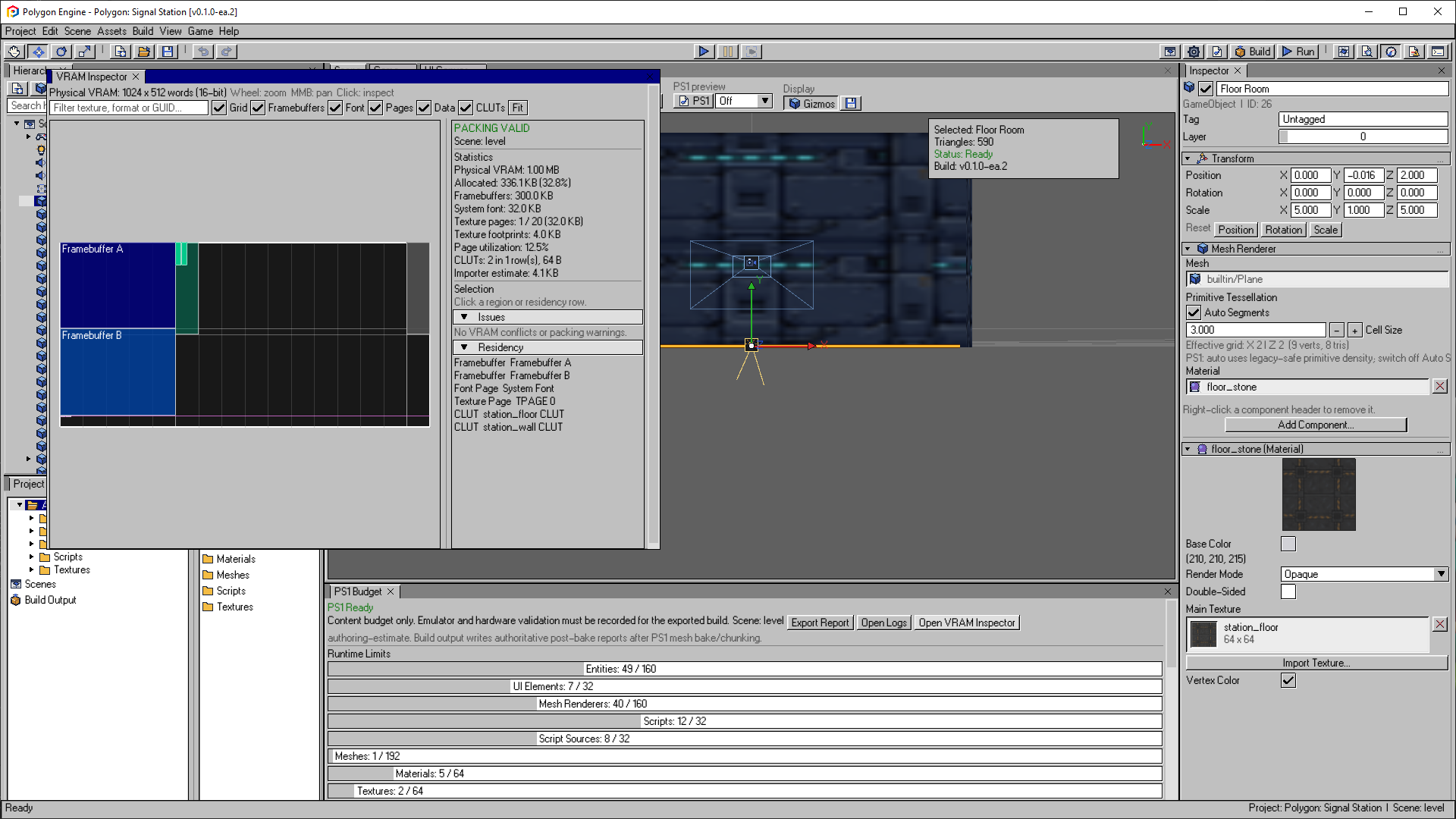
The VRAM map separates framebuffers, font data, texture pages and palettes. Use Residency to locate an allocation and Issues to investigate packing warnings. These totals belong to the example scene.
Open the image to view it at full size.What the Map Shows
The map represents the PS1's physical 1024 x 512 field of 16-bit words. It
draws:
- the two
320 x 240framebuffers; - allocated
64 x 256-word texture-page regions; - each texture's real word footprint inside its page;
- indexed-color CLUT rows in the reserved palette area.
Texture footprints account for format density: 4-bit pixels use four texels per 16-bit word, 8-bit pixels use two, and direct 16-bit pixels use one.
Navigation and Filtering
| Control | Action |
|---|---|
| Mouse wheel | Zoom around the cursor |
| Middle-mouse drag | Pan |
| Left click | Select the topmost region under the cursor |
| Fit | Reset zoom and pan |
| Filter | Match texture label, GUID, format, source path, or resource type |
The Grid, Framebuffers, Pages, Data, and CLUTs toggles can isolate one layer without changing the actual packing plan.
Details and Diagnostics
The details pane reports:
- total allocated words and occupancy;
- framebuffer, page, texture-footprint, and CLUT use;
- texture-page utilization;
- CLUT count and rows used;
- the importer's separate texture-memory estimate;
- packing warnings and hard conflicts.
Selection shows the exact VRAM rectangle in words, texture format, and project source path. Reveal Texture Asset selects the matching source in the Project Browser when the GUID resolves.
Red outlines identify conflicts such as overlapping allocations, resources outside physical VRAM, texture data escaping its page, pages outside the runtime page grid, or CLUTs outside their reserved area.
How to Use It
- Open the current scene and run Build > Validate Project.
- Open PS1 Budget, then VRAM Inspector.
- Resolve every packing conflict before reducing quality elsewhere.
- Use the page-utilization figure to find textures wasting page space.
- Reimport textures with an appropriate indexed/direct format and inspect the layout again.
- Confirm the final build's post-bake reports; those remain authoritative for packaged output.
The inspector explains placement. It does not rearrange textures interactively or replace the build packer.