UV Editor
The UV Editor is the Level Builder's texture-coordinate workspace. It edits the
UVs stored in a project-owned .pmsh mesh and provides PS1-oriented checks
before that mesh is compiled to Library/meshes/*.msh.
Open or create a mesh in View > Level Builder, then select Open UV Editor. The UV Editor follows the active Level Builder mesh. In Face mode, face-oriented operations target only selected faces. With no faces selected, those operations are disabled. Use Object mode to target the whole mesh.
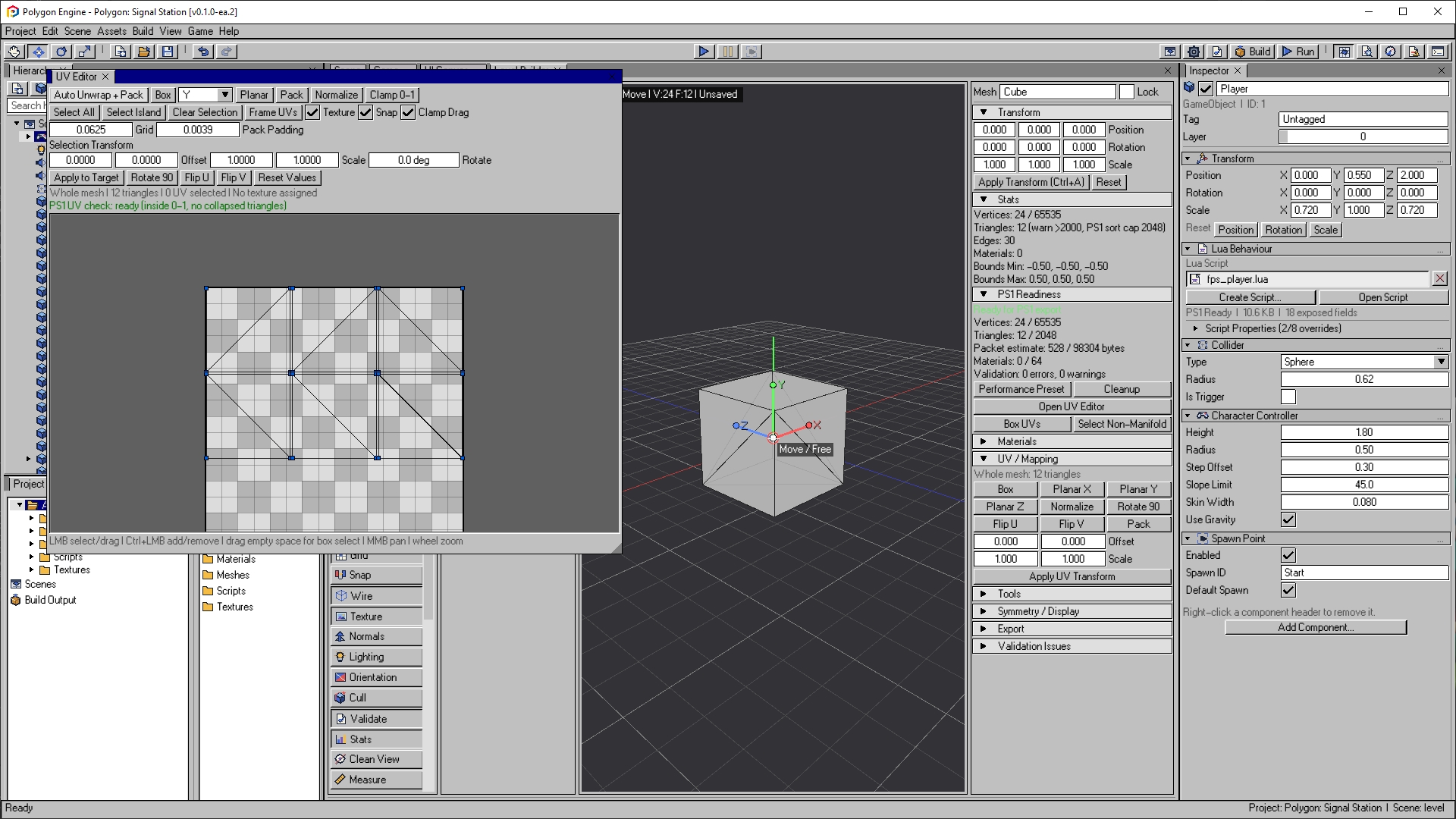
The cube after Auto Unwrap + Pack. The green PS1 UV check confirms that its coordinates are inside 0–1 and its triangles are not collapsed. The mesh remains visible behind the UV window.
Open the image to view it at full size.Recommended Workflow
- Finish the important topology changes in Level Builder.
- Select the faces that need a projection, or switch to Object mode to work on the full mesh.
- Use Auto Unwrap + Pack for a practical starting layout.
- Display the assigned texture and inspect the result.
- Select and transform UV vertices or islands where the automatic layout needs correction.
- Resolve the PS1 UV status before saving the mesh.
- Save the mesh asset and validate the scene that uses it.
Topology edits can create or remove vertices, so revisit the UV Editor after extruding, insetting, merging, deleting, duplicating, or subdividing faces.
Projection and Packing
| Command | Result |
|---|---|
| Auto Unwrap + Pack | Generates box-projected seams and packs the resulting islands |
| Box | Projects faces according to their dominant axis without packing |
| Planar X/Y/Z | Projects the target faces on the selected world axis |
| Pack | Re-packs existing islands using the current padding |
| Normalize | Fits the target UV range into the normalized texture space |
| Clamp 0-1 | Clamps target coordinates to the normalized texture bounds |
Pack Padding controls the space left between UV islands. A small non-zero padding helps prevent adjacent regions from sampling each other after texture conversion. Packing is deterministic for the same topology, target faces, and padding.
Selection and Navigation
| Action | Control |
|---|---|
| Select one UV vertex | Left click |
| Add or remove from selection | Ctrl + left click |
| Box select | Drag from empty canvas space |
| Move selected UVs | Drag a selected UV vertex |
| Select connected island | Select Island |
| Select every target UV | Select All |
| Pan | Middle mouse drag |
| Zoom | Mouse wheel |
| Fit the target UVs | Frame UVs |
Snap moves dragged coordinates on the configured grid. The smallest
available grid step is 1/256, which maps cleanly to the coordinate resolution
of a 256-pixel texture. Clamp Drag prevents interactive movement from
leaving the normalized 0-1 range.
Numeric Transforms
The Selection Transform fields apply offset, scale, and rotation to the selected UV vertices. When nothing is selected, the transform applies to the current target faces. Quick operations are also available for:
- rotate 90 degrees,
- flip U,
- flip V.
These operations isolate UV seams when necessary so editing one face's mapping does not unexpectedly rewrite an unrelated face that previously shared the same position vertex.
Scale must be nonzero and all transform values must be finite. Negative scale mirrors the mapping. Applying a transform resets the numeric fields to their neutral values. Reset Values only clears those fields; it does not change the mesh or undo an applied transform. Use Undo to revert a mesh edit.
Texture Preview
Enable Texture to display the texture assigned through the active mesh's material. The preview is an authoring aid: final palette conversion, texture page placement, CLUT placement, material flags, and GPU dithering still belong to the asset and build pipelines.
If no usable texture is assigned, use the grid and normalized boundary to author the layout, then inspect it again after assigning a material.
PS1 UV Status
The status line reports whether:
- target UV vertices stay inside
0-1, and - any target triangle has collapsed UV area.
Coordinates outside the normalized range can intentionally repeat a texture. Level Builder export splits triangles at texture-tile boundaries so the compiled PS1 mesh preserves that repetition without changing the editable source UVs. This can increase the compiled triangle count; excessive tiling is rejected with a budget diagnostic. Do not normalize or clamp an intentional repeated mapping just to remove the range warning.
A collapsed UV triangle cannot map meaningful texture area. Use the status as a local mesh check, then run normal project validation because the UV Editor does not replace VRAM, material, texture-import, geometry, or packet budget validation.
See Level Builder, Texture Import, and PS1 Rendering and Level Authoring.