Panels Reference
Detailed reference for each editor panel. For the recommended workflow (import, configuration, scene, components, build), see Editor Overview. The Polygon Engine editor uses a dockable panel layout inspired by Unity. All panels can be toggled from the View menu.
Window size and UI scale
The editor's window size and View > UI Scale control the workspace, not the PS1 game's resolution. On a 1360 × 768 or 1440 × 900 desktop, begin with 100% or Auto, then widen the Inspector or rearrange docked panels as needed. A larger scale leaves less room for the same content.
Import settings scroll separately from their action buttons. Dialogs are bounded by the editor's available work area; scroll their contents if needed. If a saved layout is inconvenient, use View > Reset Layout and UI Scale to restore it. This changes the workspace without modifying scene content.
Hierarchy
Displays the scene's GameObject tree. GameObjects can be nested via parent-child relationships.
Features:
- Click to select a GameObject (opens in Inspector)
- Right-click for context menu: Create Empty, Create Cube, Create Camera, Duplicate, Delete
- F2 to rename the selected GameObject
- Drag GameObjects to reorder or re-parent
- Camera icon displayed next to Camera GameObjects
Inspector
Shows properties and components of the selected GameObject or asset.
GameObject mode displays:
- Name and enabled toggle
- Transform (Position, Rotation, Scale)
- All attached components with editable fields
- "Add Component" button
Asset mode displays import settings and stats when a model, texture, or audio asset is selected in the Project Browser.
Viewport
3D preview of the current scene. Renders GameObjects with their transforms and mesh data.
Navigation:
- Right Mouse Button: Orbit camera
- Middle Mouse Button: Pan camera
- Mouse Wheel: Dolly (zoom)
- F key: Focus on selected GameObject
Gizmos:
- W: Translate mode
- E: Rotate mode
- R: Scale mode
Console
Shows editor, build, packaging, and Play Mode messages in a single log list.
Use Info, Warnings, and Errors to show or hide each message level. Select a message to inspect its details. Clear removes the logs; it does not remove the diagnostics in Problems.
Project Browser
Browse the project's files from three sections:
| Section | Content |
|---|---|
| Assets | Source assets, scripts, and project folders |
| Scenes | Scene JSON files |
| Build Output | Generated disc package files |
In Assets, use the type filter to show All, Folders, Models, Textures, Audio, Scripts, Materials, or Other. Choose Current Folder or All Assets to set the scope of the search and filters.
The Assets listing refreshes automatically when files or folders are added, renamed, or removed outside the editor. If a change is not visible yet, focus Project Browser and press F5 without editing a text field to refresh the listing. This refresh does not reimport modified assets; use Reimport when needed.
Right-click an asset for its context menu. Available actions depend on the asset type and include Import, Reimport, Show in Explorer, and Delete.
Asset Audit
Detailed analysis of all assets in the project, organized into tabs:
| Tab | Content |
|---|---|
| Textures | Format, dimensions, VRAM usage per texture |
| Meshes | Vertex count, triangle count, RAM estimate per mesh |
| Scene Summary | Total memory budgets, geometry stats, warnings |
Includes PS1 memory budget progress bars for VRAM, RAM, and SPU.
PS1 Budget
Current-scene production dashboard for PS1 compatibility. It summarizes the same resource classes that matter during build:
| Section | Content |
|---|---|
| Runtime Limits | GameObject, UI, script, mesh, material, texture, texture page, and audio clip counts |
| Memory Estimates | Mesh RAM, mesh files, texture VRAM, SPU audio, Lua heap, packet buffer, .BSN size, and scene triangles |
| Runtime Workload | Baked meshes, sectorized renderers, Collider gaps, Lua Update() Behaviours, audio loops, Transform/standalone animation, and skeletal asset budgets |
| Workflow Checklist | Build scene setup, startup scene, enabled GameObjects, playable camera, controller count, VRAM packing |
| VRAM Placements | Texture page coordinates and CLUT row usage |
| Issues and Warnings | Analyzer output before building |
Use Export Report to write the authoring estimate to
Build/ps1/logs/ps1_budget_current_scene.json. The build pipeline updates that
file with post-bake runtime data for the active scene and writes per-scene
runtime reports for every scene included in the build.
Use Open VRAM Inspector to turn those placement rows into an interactive
1024 x 512-word map with framebuffers, page footprints, CLUT rows, conflicts,
filtering, and source-asset reveal. See VRAM Inspector.
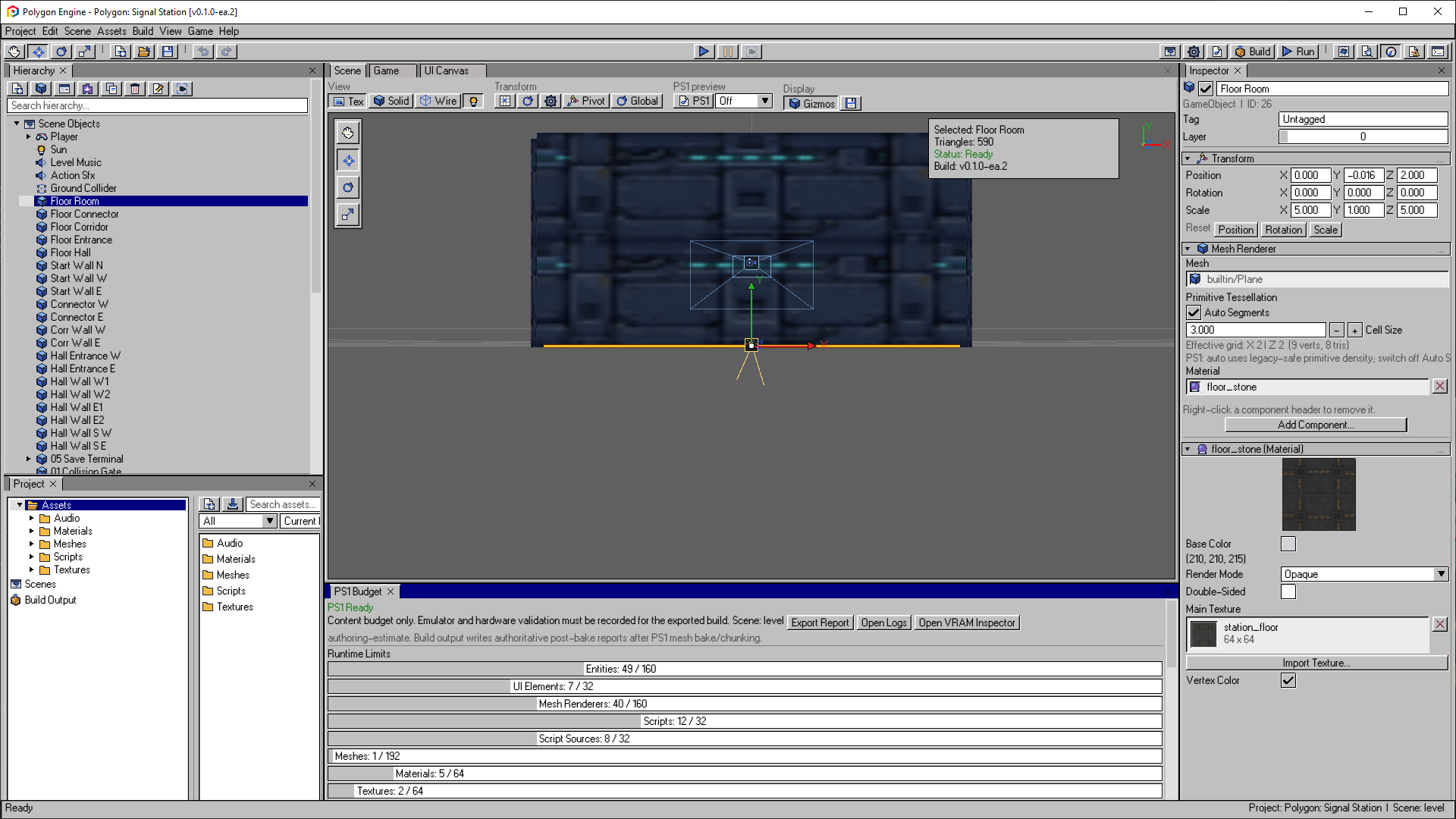
PS1 Budget compares the current scene with runtime limits. These are authoring estimates; inspect the exported build report as well as the game running on the target.
Open the image to view it at full size.Problems
Validation panel showing issues detected in the current scene:
- Missing asset references
- Budget overages (triangles, memory)
- Script errors
- Configuration warnings
- Post-bake build issues for
.BSN, manifest, runtime memory, mesh counts, and packet estimates after a PS1 build
During Play Mode, Problems keeps the diagnostics from before you pressed Play. Check Console for live gameplay errors. Stop Play Mode before using Validate Again to run a fresh check; this button is disabled during Play.
Use Focus to select the affected GameObject or asset. For UI element errors, Focus opens UI Canvas and selects the element in the Inspector, where you can fix its text, texture, or click action. Focus is unavailable when a message refers to the project or scene as a whole.
Issues that have a safe editor action expose that action directly in the panel. Examples include opening Tool Paths, opening Build Settings, selecting a GameObject, or adding a required companion component. A fix is offered only when the editor can make the change without guessing project intent; other issues remain explanatory diagnostics.
Game Mode
Preview panel for testing gameplay. Activates Lua script execution in the editor with Play/Stop controls. Transforms are restored when exiting play mode. Content-mutating actions such as import, delete, duplicate, Canvas edits, and Inspector edits are blocked during Play Mode and build jobs.
Starting Play focuses the Game tab automatically. Game Stats reports the effective camera/player position, grounded state, vertical velocity, active scene, input capability, UI focus, audio state, and other runtime-facing data used to diagnose differences between Play Mode and a PS1 build.
Workspace and Layouts
Docked panel layouts are stored as local editor state under
%APPDATA%/Polygon Engine/Editor/. The Project Hub does not overwrite a saved
project workspace. If a saved layout is missing or malformed, the editor
rejects it and restores a usable default rather than opening with inaccessible
panels.
Use the View menu to reopen a closed panel, then save the layout after the workspace is usable. Layout files are not portable project content and should not be added to a game's source repository.
Level Builder
Mesh authoring panel for project-owned mesh assets. It supports primitive creation, object/vertex/edge/face selection, transform gizmos, mesh validation, saving to Assets/Meshes/*.pmsh, importing compiled mesh assets, and placing saved meshes into the scene.
Object transforms are baked into vertices when saving or placing the mesh so the PS1 runtime receives unambiguous geometry. Placed meshes create regular scene GameObjects with a Mesh Renderer and an AABB Collider based on mesh bounds. See Level Builder.
UI Canvas
Scene UI authoring surface for Panels, Text, Images, Buttons, and ProgressBars. Elements belong to one of as many as eight named canvases, each with its own reference size, enabled state, and sort order. Buttons can navigate focus and call Lua functions.
Use the UI Canvas for shipping menus and HUD. Use UI.DrawText() only for temporary script/debug text. See UI Canvas.
UV Editor
Texture-coordinate workspace for the active Level Builder mesh. It supports automatic unwrap and packing, box and planar projection, island and vertex selection, texture preview, snapping, numeric transforms, and PS1 UV checks. See UV Editor.
Advanced Scene Authoring
Dockable authoring window for scene-level rendering, transition, world, and animation systems. Its five tabs cover per-vertex PS1 fog and mesh color policy; loading-screen configuration, UI canvases, bitmap fonts, and ProgressBars; Rooms, Portals, navigation presets, and a height-colored top-down bake preview; cutscene tracks and Game View preview; and reusable concurrent Animation clips. The two animation tabs include visual rulers, zoom, playheads, keyframe creation/selection, drag retiming, and Undo integration.
The window follows editor undo/dirty-state rules and persists with saved layouts. See Advanced Scene Authoring.
VRAM Inspector
Interactive map of planned PS1 framebuffer, texture-page, texture-footprint, and CLUT placement for the current scene. It reports overlap/out-of-bounds conflicts, page utilization, occupancy, and exact source assets. See VRAM Inspector.
Viewport toolbar groups wrap as the available width changes. The default Console uses a smaller share of the workspace; saved layouts can retain their previous sizing. Use the layout reset described in Project Safety to restore the current defaults. If a panel becomes crowded, widen it or choose a smaller View > UI Scale.