Texture Import
Supported Formats
- PNG (
.png) — lossless, supports alpha - BMP (
.bmp) — uncompressed bitmap - TGA (
.tga) — 24-bit RGB, 32-bit RGBA, or 8-bit grayscale; uncompressed or RLE. Color-mapped TGA is unsupported; export RGB/RGBA or PNG instead.
These formats also apply to UI images and bitmap font atlases. JPEG, WebP, GIF, PSD, and SVG are not accepted source formats; export a supported image first. See Supported File Formats for the complete compatibility guide.
Textures are converted to PS1 VRAM-compatible formats during import.
Import Settings
| Setting | Type | Default | Description |
|---|---|---|---|
| Max Size | int | 256 | Upper size for Clamp To Max: 32, 64, 128, or 256; format limits also apply |
| Resize Mode | enum | ClampToMax | How oversized textures are handled |
| Resample Filter | enum | Nearest | Filter used when the image size changes |
| Force Power of Two | bool | false | Round each dimension up to a power of two within the format limits; may change aspect ratio |
| Format | enum | Indexed8 | Target pixel format for PS1 |
| Dithering | enum | Off | Use deterministic Floyd-Steinberg error diffusion during quantization |
| Alpha Mode | enum | None | Alpha channel handling |
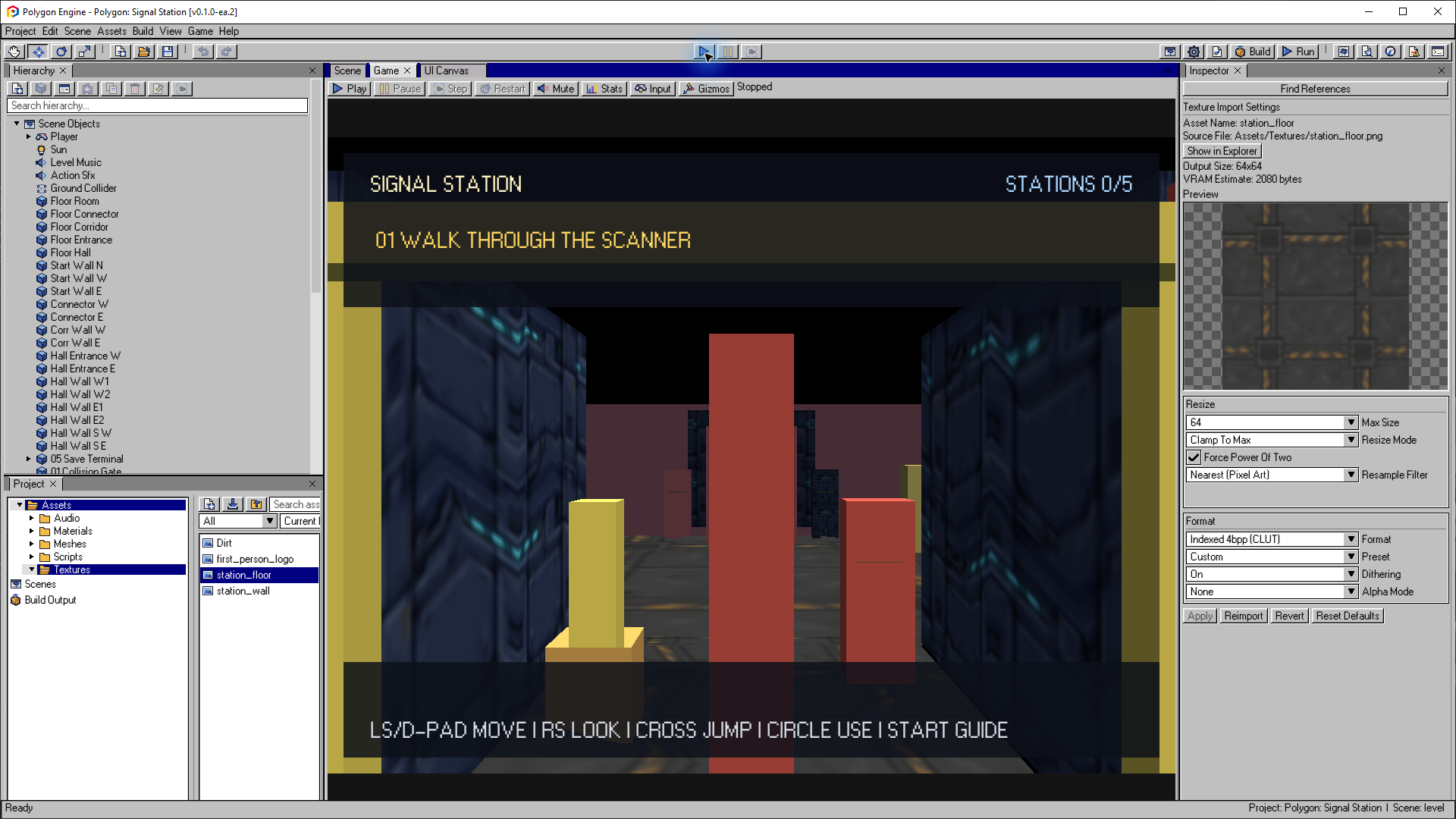
This floor texture uses 64 × 64 pixels, Nearest filtering and Indexed 4bpp. Its settings are an example: choose the size, palette and dithering that suit your artwork.
Open the image to view it at full size.Output Dimensions
The current importer limits each generated texture as follows:
| Format | Maximum width × height |
|---|---|
| Indexed 4bpp | 256 × 256 pixels |
| Indexed 8bpp | 128 × 256 pixels |
| Direct 16bpp | 64 × 256 pixels |
Clamp To Max reduces an oversized image to fit both Max Size and the format's width/height limits, preserving its aspect ratio. For example, a 1024 × 512 image with Max Size 256 becomes 256 × 128 in 4bpp, 128 × 64 in 8bpp, or 64 × 32 in 16bpp. Force Power Of Two can change that proportion; leave it off when preserving the source shape matters.
None keeps the source dimensions and ignores Max Size, but rejects images that exceed the selected format's limits. Choose Clamp To Max, another format, or resize the source when that happens. These are Polygon Engine's current import limits, not a complete description of the PS1 GPU's capabilities.
Resample Filters
| Filter | Best use |
|---|---|
| Auto | Area reduction when shrinking; Mitchell reconstruction when enlarging |
| Nearest | Pixel art, masks, UI, and backward-compatible crisp imports |
| Area | Photographic or painted textures that need strong downscaling |
| Mitchell | Smooth enlargement or moderate resizing with controlled ringing |
Area and Mitchell filtering operate on premultiplied alpha. This prevents transparent RGB values from bleeding a fringe into opaque texels during a resize. Resampling happens before palette generation and PS1 quantization.
Pixel Formats
| Format | Bits/Pixel | VRAM Usage | Description |
|---|---|---|---|
Indexed4 | 4 bpp | Smallest | 16-color palette, best for simple graphics |
Indexed8 | 8 bpp | Medium | 256-color palette, good balance (default) |
Direct16 | 16 bpp | Largest | 15-bit RGB plus the STP semi-transparency flag; zero-color transparency rules apply, no palette |
Import Dithering
Indexed imports generate a 16-color or 256-color palette from the source image. Reimporting the same source with the same settings produces the same result.
When Dithering is On, the importer applies deterministic Floyd-Steinberg error diffusion while converting the source image:
Indexed4: diffusion into the 16-color palette mapping;Indexed8: diffusion into the 256-color palette mapping;Direct16: diffusion while reducing RGB to the PS1 15-bit color result.
The deterministic traversal keeps repeated imports stable for the same source and settings. Error diffusion redistributes quantization error into neighboring pixels; it does not increase palette capacity, color precision, or VRAM.
When Dithering is Off, the importer performs the selected 4/8/16 bpp quantization without error diffusion. Use Off for pixel art, UI atlases, masks, or any texture whose exact hard-edged pixel pattern must remain undiffused.
Import dithering is separate from a Material's runtime Dither flag. The import setting changes the generated texture data; the material flag controls PS1 GPU drawing behavior.
Alpha Modes
| Mode | Description |
|---|---|
None | No transparency |
Mask1Bit | Binary transparency (fully opaque or fully transparent) |
SemiTransparent | Requires Material Render Mode set to Semi-Transparent |
Presets
The Inspector offers quick presets:
| Preset | Format | Resize Mode | Filter | Dithering | Max Size | Power of Two |
|---|---|---|---|---|---|---|
| PS1 4bpp | Indexed4 | Clamp To Max | Auto | On | 256 | No |
| PS1 8bpp | Indexed8 | Clamp To Max | Auto | On | 256 | No |
| UI 8bpp (Crisp) | Indexed8 | None | Nearest | Off | 256 | No |
PS1 Constraints
- VRAM total: 1 MB (shared with framebuffers)
- Textures must fit in VRAM alongside the display framebuffer
- Imported dimensions depend on the selected format; see Output Dimensions above
- Hard runtime cap: 64 loaded texture assets; projects may set a lower authoring budget
- Textures are uploaded to VRAM with coordinates managed by the runtime
Workflow
Detail and texel density
Judge detail from the imported dimensions and the part of the atlas assigned to each surface, not the source PNG size alone. A 32-pixel tile stretched across a room wall will look much coarser than the same tile on a small box. Give large nearby surfaces more atlas space or their own texture and keep horizontal and vertical texel density consistent in your modeling tool.
An 8bpp texture may be 128 by 256; rectangular textures can preserve detail without forcing a square atlas. Use Resize Mode None only when the source fits the selected format. Raising Max Size above the format's width cap cannot avoid that cap. More palette colors improve color variation, not spatial resolution. Resample Filter affects import resizing, not PS1 runtime texture filtering.
If stretching exists in the source model, fix its UVs there. If it appears only as the camera moves, see camera-adaptive subdivision. Subdivision reduces affine distortion but cannot add missing texels. After a change, reimport the model and/or texture, check the actual output and VRAM placement, and rebuild before comparing on PS1.
Import and assign
- Place
.png,.bmp, or.tgafile inAssets/Textures/ - The editor auto-imports with default settings
- Adjust format, size, resample filter, and dithering in the Inspector
- Click Apply & Import to reimport with new settings
- Assign the texture to a Material, then assign that Material to a Mesh Renderer