PS1 Budget Dashboard
The PS1 Budget panel is the fastest way to decide whether the current scene is still inside the engine's PlayStation 1 runtime envelope.
Open it from View > Show PS1 Budget or Build > Tools & Diagnostics > Show PS1 Budget.
Choose Open VRAM Inspector from the dashboard when a placement row needs visual diagnosis. The VRAM Inspector uses the same current-scene placement model.
What It Measures
| Area | Why it matters |
|---|---|
| Runtime limits | Prevents scenes from exceeding fixed runtime arrays |
| Memory estimates | Keeps mesh RAM, mesh files, VRAM, SPU, Lua, and packet usage visible |
| Runtime workload | Shows Mesh Renderers, baked meshes, sectorized renderers, Lua Update() Behaviours, Transform/standalone animation counts, skeletal geometry/matrices/scratch, and worst visible-sector triangle estimates |
| Workflow checklist | Confirms build scene setup, startup scene, camera, controllers, and VRAM packing |
| VRAM placements | Shows texture page coordinates and CLUT rows before export |
| Issues and warnings | Gives a build-facing summary without launching the toolchain |
The open editor panel is an authoring estimate for the currently loaded scene. During a PS1 build, Polygon Engine writes the authoritative post-bake runtime budget after built-in geometry has been converted into PS1 mesh chunks.
Understanding warnings in Problems
Warning means a safety target needs attention; it does not by itself mean the build failed. Error identifies a blocker that must be resolved. The What do these messages mean? section in Problems explains this distinction.
- Post-bake means the check used the converted assets from the last PS1 build. Validate Again refreshes editor validation; rebuild to update post-bake numbers after changing a scene or its assets.
- Needs optimization is a summary. Read the scene-specific warnings below it and use PS1 Budget to identify the resource that needs work.
- Runtime main RAM scene-content margin is tight means the estimated peak leaves less than the recommended 160 KiB (163,840 bytes) free in PS1 main RAM. This is unrelated to how much RAM your Windows PC has.
PS1 has 2 MiB of main RAM. The runtime, scene content, Lua, and temporary loading allocations must share the usable budget. VRAM and SPU sound memory are separate budgets. A margin below 96 KiB also misses the release floor.
An older report can show 160.0 KB free and still warn: that display rounds the value, while the comparison uses exact bytes. For example, 163,839 bytes is one byte below the recommended target. New reports include exact bytes.
To recover main RAM, reduce resident model or skeletal-animation data, reuse assets, or split a large level into scenes. Removing unrelated source files alone does not reduce the memory of the loaded scene. Rebuild, check the new report, and test transitions and gameplay in DuckStation and on your console. Meeting the budget does not guarantee a particular frame rate.
Audio budget warnings
Audio has three separate limits:
- Audio clips counts unique resident VAG clips referenced by the scene. The hard limit is 16; referencing one clip from several sources does not create several unique clips. Reaching 70% of the clip slots alone is not a warning.
- SPU audio estimate measures resident sample bytes against the project's SPU budget. Its warning begins at 70% of that memory budget. Short UI cues can occupy many clip slots while still using little sample memory.
- Playback has 24 hardware voices. Repeated one-shots can exhaust voices even when the static clip and sample budgets pass. This is a runtime condition; check playback results and avoid retriggering cues every frame.
CD-XA tracks are streamed music, not resident VAG samples. Lowering an Audio Source's volume does not save sample memory. Shorten or resample effects, reuse clips, or move long ambience to Music when the SPU estimate is high.
First-Person and Third-Person Checks
The dashboard counts Player Input, Player Motor, First Person Controller, Third Person Controller, Camera Rig, Interaction Ray, Interactable, and Camera Zone usage. A scene should normally have one active player controller host and at least one Camera or Camera Rig.
For third-person scenes, verify that:
- the player GameObject owns Player Input, Player Motor, Character Controller, and Third Person Controller,
- the follow camera has a Camera Rig targeting the player,
- optional Camera Zones are sized clearly and have stable priorities,
- the player has a visible mesh and Animator states if animation is expected.
For first-person scenes, verify that:
- the camera is parented to or targeted by the player rig,
- eye height and interaction distance are authored intentionally,
- the player body does not require a visible mesh for the intended first-person presentation; the engine has no general mirror or dynamic-shadow renderer.
Report Output
Use Export Report to write:
Build/ps1/logs/ps1_budget_current_scene.json
During build, the same path is updated with the post-bake runtime report for the active scene. The build also writes:
Build/ps1/logs/ps1_runtime_budget_<scene>_<hash>.json
Build/ps1/logs/ps1_build_performance_report.json
Use the runtime reports as the source of truth for staged-content budget checks.
They include final .BSN read size, post-bake GameObject and mesh counts, manifest
usage, runtime loaded+BSS memory, scene-content bytes, loader transient bytes,
script/audio/animation workload, and warnings when content approaches fixed PS1
limits. Scene .BSN data is counted as loader transient memory, not permanent
scene memory, because the runtime releases it after the scene has been parsed.
For skeletal scenes, the report separates animator records, unique assets, geometry, baked matrix data, and shared deformation scratch. Scratch uses the largest asset requirement; geometry and matrices accumulate across unique scene assets. Skeletal warnings begin at 70% of their fixed budgets.
The build-level report exposes the same production status used by the editor:
PS1 Ready: all official production targets are met.Needs optimization: the build works, but it is too close to a PS1 limit for a release template.Build blocker: the package would exceed a hard runtime limit or lacks authoritative release data.
For production acceptance, ps1_build_performance_report.json must include
runtimeMemory.available: true. If that field is missing, the package may still
exist on disk, but the build is not considered a verified release package.
The report also records video.region and video.refreshHz. Production
Acceptance verifies these values against both the project and the staged runtime
manifest, so a PAL or NTSC selection cannot silently become a different build.
Official templates should stay below these targets: 160 KB or more runtime RAM
free, manifest text at or below 70%, .BSN read size at or below 65%, and
packet estimate at or below 80%.
Runtime Performance Overlay
In a generated game, hold L1 + R1, then tap Select to toggle the hidden runtime performance overlay. It reports:
- active region and refresh rate,
- last and peak VSync intervals plus slow-frame count,
- triangles drawn,
- packet-buffer use, peak and dropped packets,
- Lua memory use, peak and error count,
- update, render submission, draw-wait, and VSync phase ticks,
- Lua (including garbage collection), physics, navigation, and animation subphase ticks,
- engine heap current/peak, loading peak, largest allocation request, and allocation failures,
- opaque/transparent and textured/untextured primitive counts,
- clipping/subdivision input and output counts,
- texture-page and CLUT changes,
- completed CD sectors, physical seeks, and scene-bundle hits/misses, and
- session sample count plus mean and peak frame ticks, and
- Port 1 connection, pad type, analog mode, held-button mask, and both raw sticks.
Toggle it off with the same combination. The overlay is a diagnostic aid and is
hidden by default. Its background covers the upper HUD while enabled.
The input rows help distinguish a disconnected pad from a controller still in
digital mode. Raw stick values near 127/128 are centered; move each stick to
check its axes. While the diagnostic chord is held, those three buttons are
reserved and are not delivered to gameplay. Profile representative gameplay on
DuckStation and real hardware before publishing a game. A SAT suffix means a
long-running aggregate counter saturated; peaks and the latest frame remain
useful, but start a fresh session for new averages.
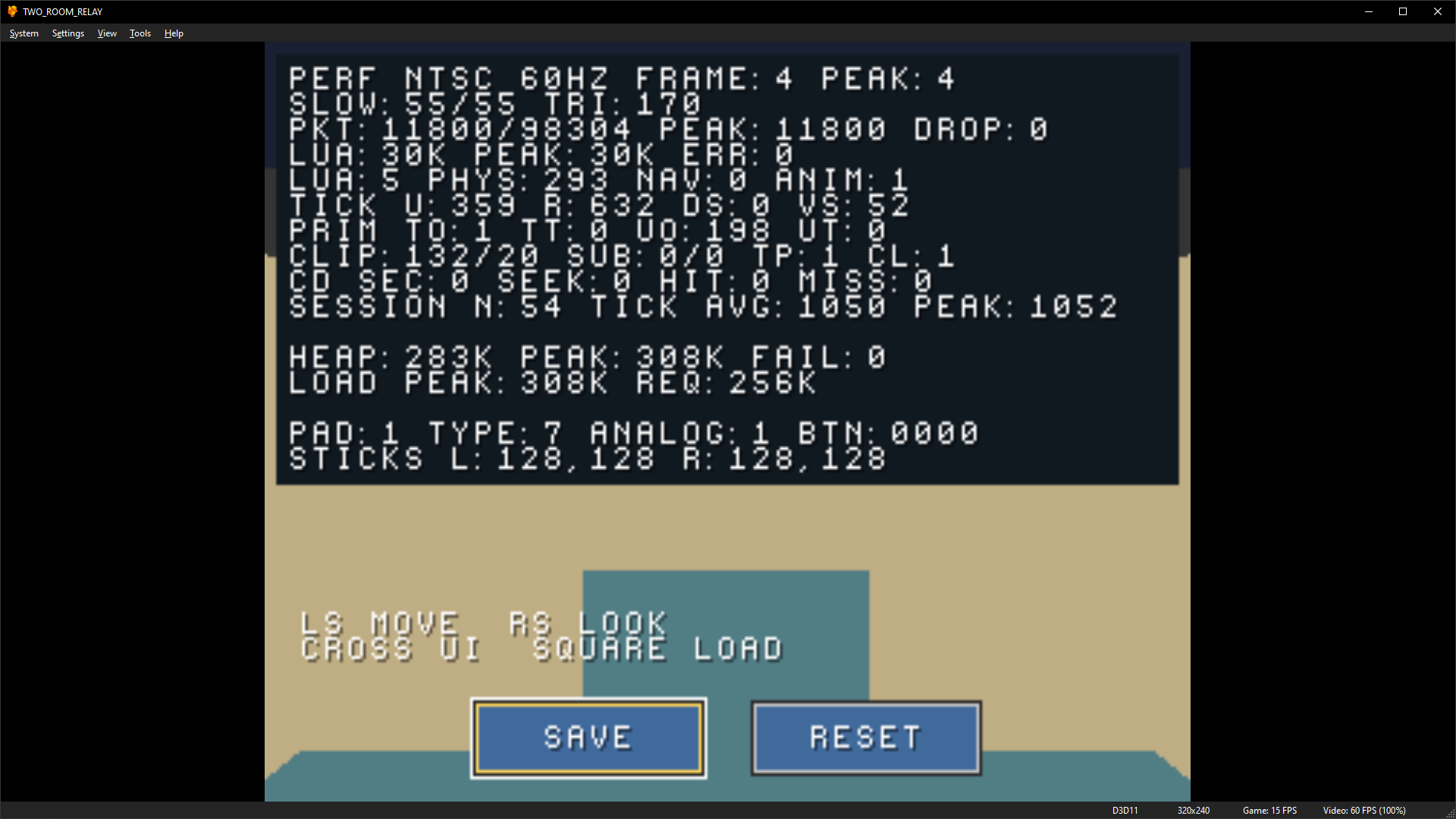
This NTSC frame spans four VSync intervals, about 15 game FPS. The overlay reports no packet drops or Lua errors in this sample. Port 1 is connected in analog mode, and both sticks are centered. Toggle the overlay off to see the HUD underneath.
Open the image to view it at full size.Reading memory and timing results
Scene transitions can require more RAM than either scene uses while playing. Use the build report to check transitions and aim to leave at least 160 KiB free. Rebuild after changing content or updating the engine to refresh the figures.
The overlay's largest allocation request is the size of a request, not the amount of free memory. Lua, physics, navigation, and animation timings are included in broader update measurements; do not add them to Update again.
The frame value measures VSync intervals, not milliseconds or FPS. Two intervals are approximately 30 FPS in NTSC or 25 FPS in PAL. The slow counter counts frames above one interval, so a game running at 30 FPS in NTSC can increase it continuously without reporting a runtime error. For diagnosis and a repeatable measurement workflow, see Low frame rate in DuckStation.
What PS1 Ready establishes
PS1 Ready means your build meets the engine's production budget checks. Next,
play the packaged game in DuckStation and on your target hardware. Check frame
rate, controller input, UI, scene transitions, audio, and saving. For projects
that support both video standards, test NTSC and PAL.